A NativeScript plugin to provide the Pull to Refresh control on any view.
@nativescript-community/ui-pulltorefresh


A NativeScript plugin to provide the Pull to Refresh control on any view.
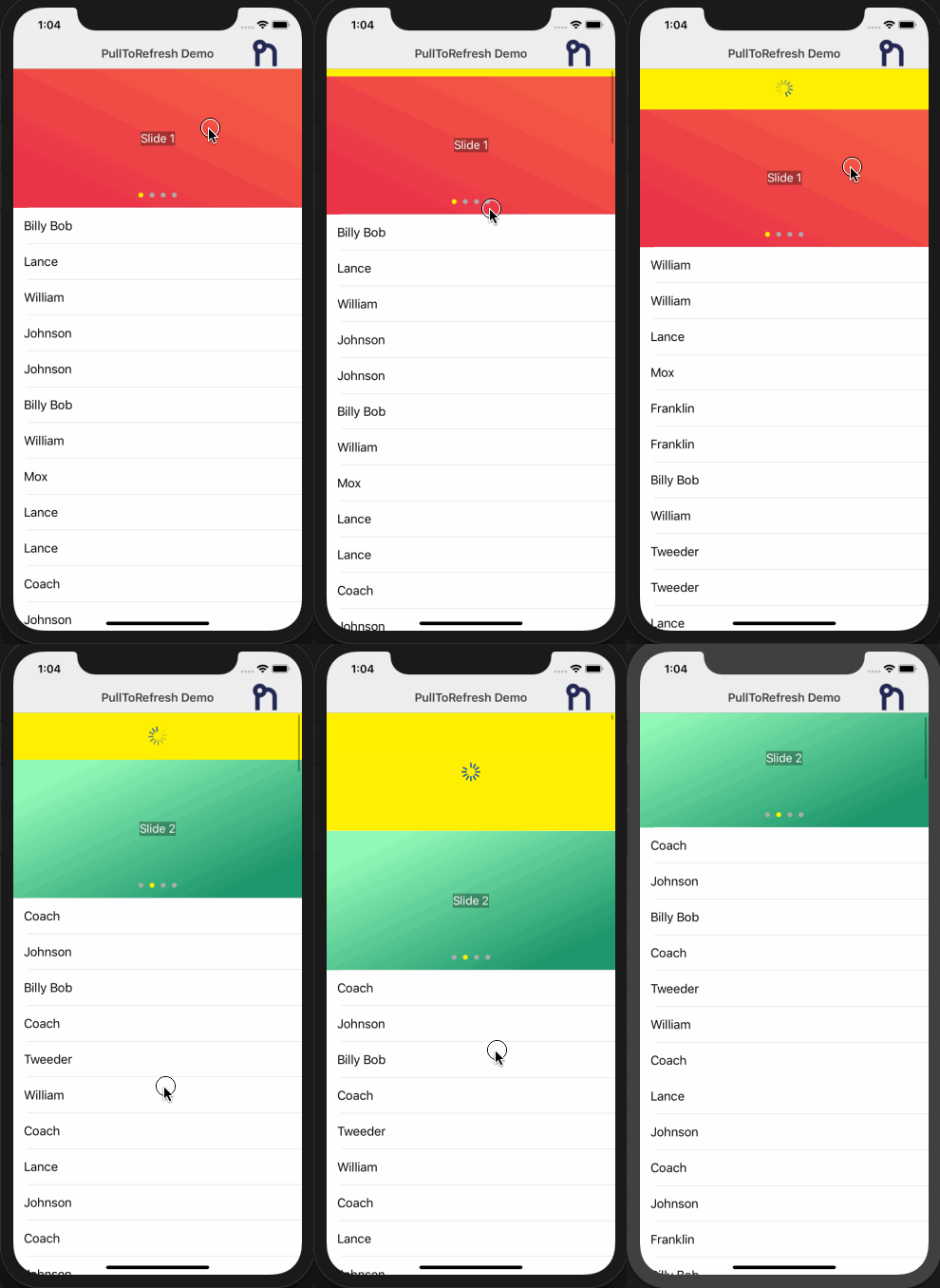 |
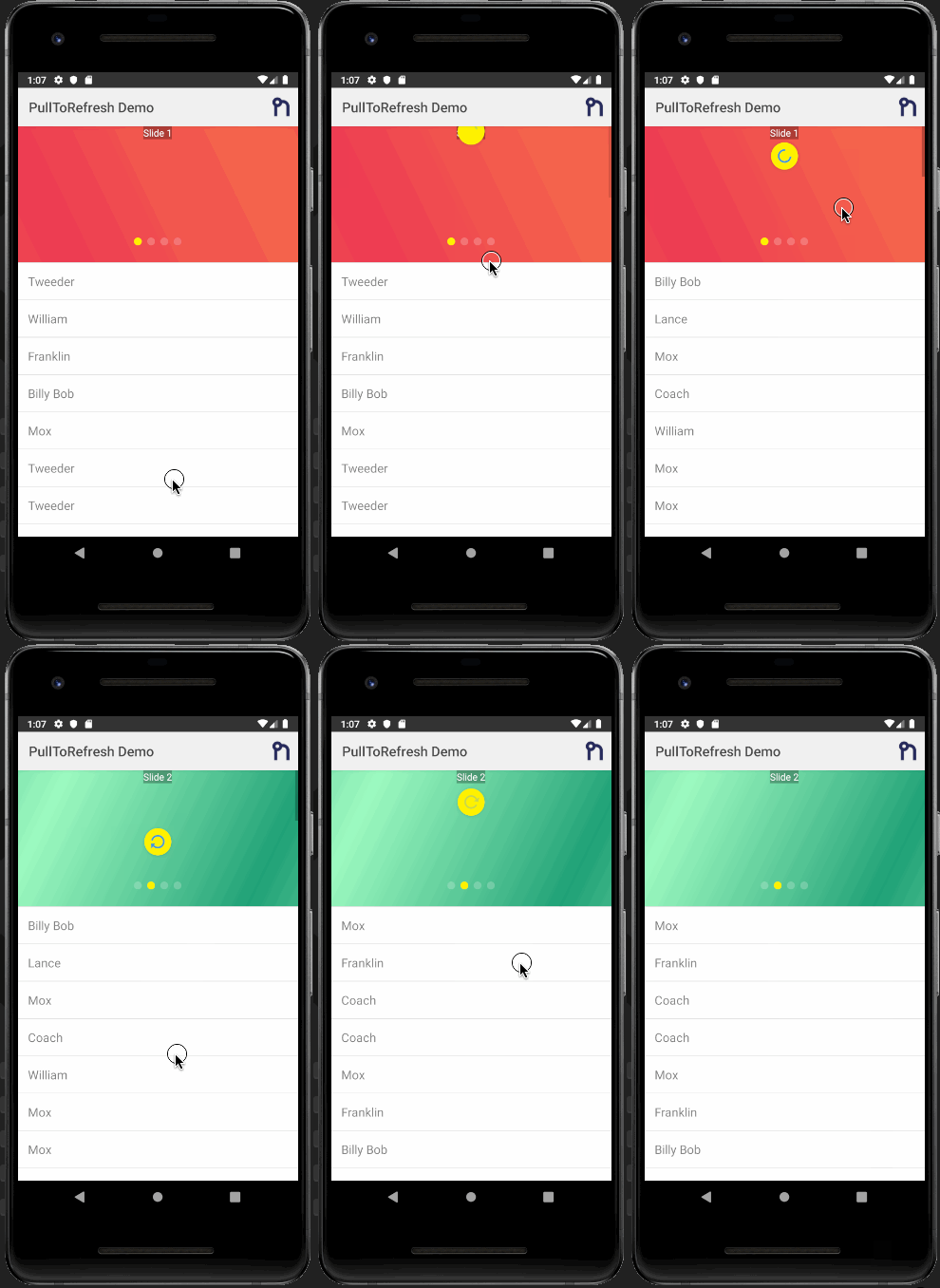 |
|---|---|
| iOS Demo | Android Demo |
Table of Contents
Installation
Run the following command from the root of your project:
ns plugin add @nativescript-community/ui-pulltorefresh
Usage
NativeScript Core
XML
JS
function refreshList(args) {
// Get reference to the PullToRefresh component;
var pullRefresh = args.object;
// Do work here... and when done call set refreshing property to false to stop the refreshing
loadItems().then(
resp => {
// ONLY USING A TIMEOUT TO SIMULATE/SHOW OFF THE REFRESHING
setTimeout(() => {
pullRefresh.refreshing = false;
}, 1000);
},
err => {
pullRefresh.refreshing = false;
}
);
}
exports.refreshList = refreshList;
Angular NativeScript
import { registerElement } from '@nativescript/angular';
import { PullToRefresh } from '@nativescript-community/ui-pulltorefresh';
registerElement('PullToRefresh', () => PullToRefresh);
refreshList(args) {
const pullRefresh = args.object;
setTimeout(function () {
pullRefresh.refreshing = false;
}, 1000);
}
HTML
<PullToRefresh (refresh)="refreshList($event)">
<ListView [items]="itemList">
<template let-item="item">
<label [text]="item.id"></label>
</template>
</ListView>
</PullToRefresh>
NativeScript Vue
import Vue from 'nativescript-vue';
Vue.registerElement(
'PullToRefresh',
() => require('@nativescript-community/ui-pulltorefresh').PullToRefresh
);
Component
Properties
- refresh : function required
- refreshing: boolean - Notifies the widget that the refresh state has changed.
- indicatorColor: Color - The color of the indicator icon.
- indicatorFillColor: Color - The background color of the indicator.
Demos and Development
Repo Setup
The repo uses submodules. If you did not clone with --recursive then you need to call
git submodule update --init
The package manager used to install and link dependencies must be pnpm or yarn. npm wont work.
To develop and test:
if you use yarn then run yarn
if you use pnpm then run pnpm i
Interactive Menu:
To start the interactive menu, run npm start (or yarn start or pnpm start). This will list all of the commonly used scripts.
Build
npm run build.all
WARNING: it seems yarn build.all wont always work (not finding binaries in node_modules/.bin) which is why the doc explicitly uses npm run
Demos
npm run demo.[ng|react|svelte|vue].[ios|android]
npm run demo.svelte.ios # Example
Demo setup is a bit special in the sense that if you want to modify/add demos you dont work directly in demo-[ng|react|svelte|vue]
Instead you work in demo-snippets/[ng|react|svelte|vue]
You can start from the install.ts of each flavor to see how to register new demos
Contributing
Update repo
You can update the repo files quite easily
First update the submodules
npm run update
Then commit the changes Then update common files
npm run sync
Then you can run yarn|pnpm, commit changed files if any
Update readme
npm run readme
Update doc
npm run doc
Publish
The publishing is completely handled by lerna (you can add -- --bump major to force a major release)
Simply run
npm run publish
modifying submodules
The repo uses https:// for submodules which means you won't be able to push directly into the submodules.
One easy solution is t modify ~/.gitconfig and add
[url "ssh://git@github.com/"]
pushInsteadOf = https://github.com/
Questions
If you have any questions/issues/comments please feel free to create an issue or start a conversation in the NativeScript Community Discord.
Demos and Development
Repo Setup
The repo uses submodules. If you did not clone with --recursive then you need to call
git submodule update --init
The package manager used to install and link dependencies must be pnpm or yarn. npm wont work.
To develop and test:
if you use yarn then run yarn
if you use pnpm then run pnpm i
Interactive Menu:
To start the interactive menu, run npm start (or yarn start or pnpm start). This will list all of the commonly used scripts.
Build
npm run build.all
WARNING: it seems yarn build.all wont always work (not finding binaries in node_modules/.bin) which is why the doc explicitly uses npm run
Demos
npm run demo.[ng|react|svelte|vue].[ios|android]
npm run demo.svelte.ios # Example
Demo setup is a bit special in the sense that if you want to modify/add demos you dont work directly in demo-[ng|react|svelte|vue]
Instead you work in demo-snippets/[ng|react|svelte|vue]
You can start from the install.ts of each flavor to see how to register new demos
Contributing
Update repo
You can update the repo files quite easily
First update the submodules
npm run update
Then commit the changes Then update common files
npm run sync
Then you can run yarn|pnpm, commit changed files if any
Update readme
npm run readme
Update doc
npm run doc
Publish
The publishing is completely handled by lerna (you can add -- --bump major to force a major release)
Simply run
npm run publish
modifying submodules
The repo uses https:// for submodules which means you won't be able to push directly into the submodules.
One easy solution is t modify ~/.gitconfig and add
[url "ssh://git@github.com/"]
pushInsteadOf = https://github.com/
Questions
If you have any questions/issues/comments please feel free to create an issue or start a conversation in the NativeScript Community Discord.